


Many entrepreneurs want to edit their website independently. But many times they don’t have enough knowledge.
How to add an image?
How to change the text?
Where to start?
How, How, How…
In this post I will show you 5 ways how to manage a website built in WordPress, even if you are not the most tech-savvy.
What is WordPress?
WordPress is a platform on which many (probably most) websites are built.
1 | Login to WordPress

To edit a website, write a blog… you must first log in. Typically, you can find login form on your domain link to which you add / wp-admin.
Example: https://www.yourwebsite.com/wp-admin
After successful login you can see dashboard.
2 | WordPress Dashboard
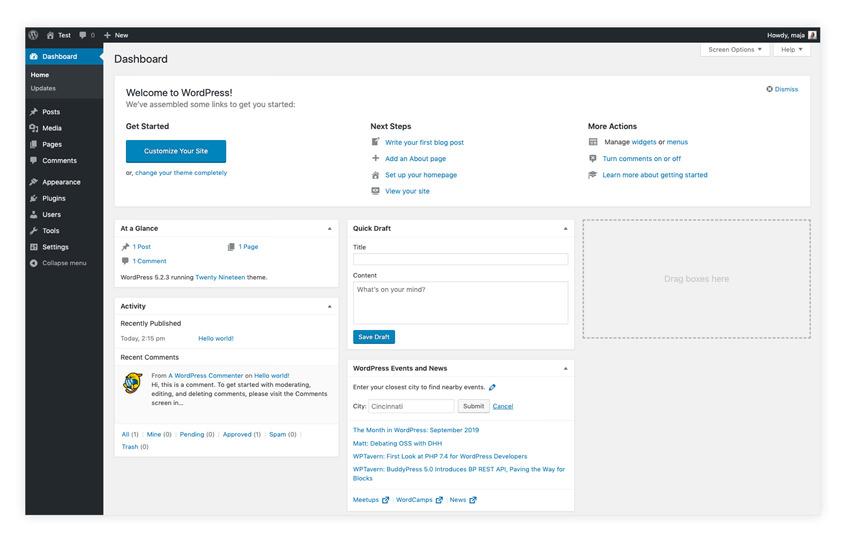
Depending on the theme you are using and plugins, you can see your dashboard a little bit different. It can contain different menus, layouts, colors…
But basically, they all have quite a few things in common. In the left column you will find navigation to individual content:
Dashboard
Here you will find shortcuts, some basic information and also a link to updates.
Posts
The posts are individual blog posts. In this menu, you will find a list of all posts, categories, tags and the ability to add new posts.
Media
Media is a library of all the photos, graphics and documents that you can upload to the website. This is where all the media is located, whether uploaded to this library, post, or page.
Pages
Unlike posts, pages are those static parts of a website. These are individual subpages on the site.
Comments
If you have enabled comments on your website, then under the comments you will find all the comments that were posted on the site. Along with the ability to approve, reject, reply …
Appearance
Under the appearance, you can first find a theme that is installed on the web site and edit it as desired.
The widgets are the individual parts of the webpage that you can usually find in the sidebar, footer, top row of the webpage.
You can also find the menu editing option under the Appearance tab. You can create new menus or edit existing ones.
Plugins
You have the option to instal plugins, activate or deactivate them under the tab Plugins. These are add-ons that add extra functionality to the website.
Users
There is no need to have only one user on a website. Under the Users tab, you can edit existing users or add new one.
When adding access to a site to an external contractor or associate, I always recommend that you create a new user for every person.
Tools
Under the Tools menu you can find different options to import and export content.
Settings
Under the Settings you can find a whole bunch of different settings, from time settings to display settings, languages, permalinks …
3 | Posts in WordPress
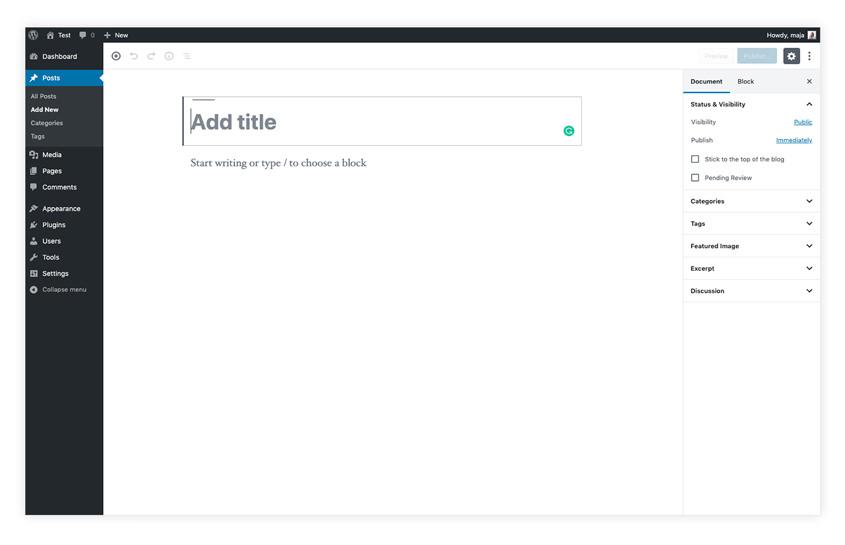
Posts are the parts of the website that are probably the most dynamic (at least if you write a blog regularly). They differ in terms of functionality and design, e.g. you can create categories, add tags… and they are meant for blog post.
4 | Pages in WordPress

Pages on a site are those more static parts that differ in functionality and form from the articles themselves. These may also change and update from time to time.
Some examples of pages are: homepage, landing pages, contact, about me, services…
5 | Updating WordPress
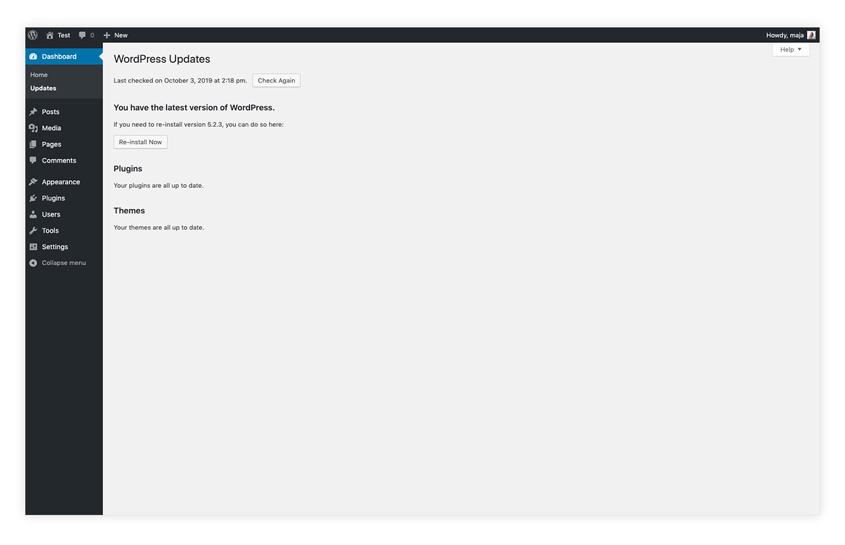
WordPress should also be updated regularly. You should update the WordPress platform, plugins, and themes. Before each update, however, I recommend that you always create a backup to an external location.


Leave a Reply